Installing Architecture Studio
Step-by-step guide to installing Architecture Studio in Codex, Claude Desktop, and Claude Code.
Architecture Studio is distributed as one open-source plugin for Codex, Claude Desktop, and Claude Code. All three load the same catalog of 61 AEC skills. Claude Code also registers the eight bundled native agents and four hook handlers; Codex runs those workflow lanes through explicit skill sequences instead of pretending the Claude-specific automation exists there.
Prerequisites
You need one of the following:
- Codex — follow the current Codex setup documentation
- Claude Desktop (Mac or Windows) — the standalone app from claude.ai
- Claude Code — the CLI tool, available via
npm install -g @anthropic-ai/claude-code
Account, plan, model, and data controls belong to the host you choose.
Installing in Codex
# Add the Git marketplace
codex plugin marketplace add AlpacaLabsLLC/skills-for-architects

# Install the plugin
codex plugin add as@skills-for-architects

# Start Codex
codex
Invoke $studio to open the Architecture Studio dispatcher, $tool-catalog for the complete skill menu, or $learn for the guided course.
Installing in Claude Desktop
Step 1: Open the Customize panel
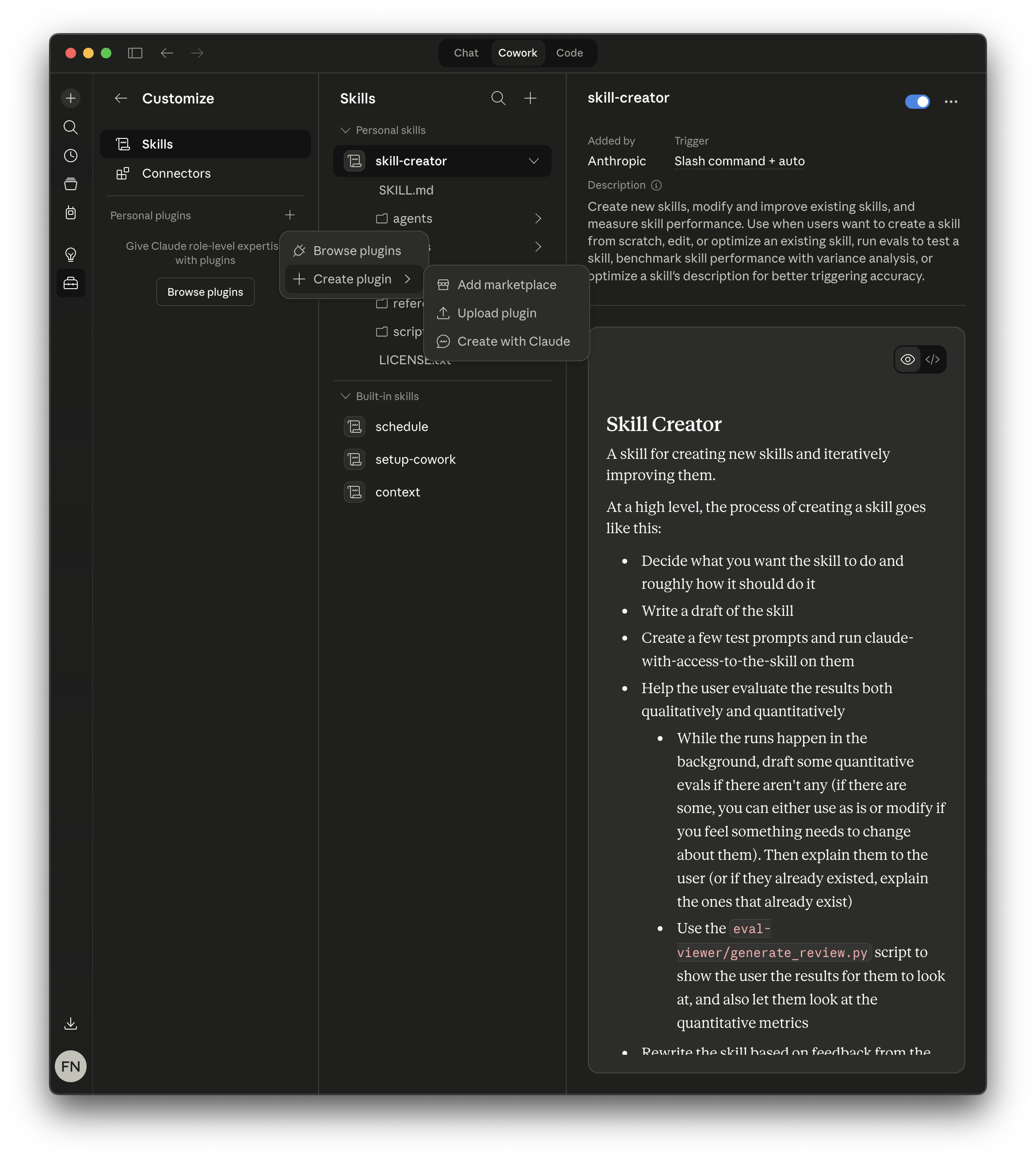
Click the sliders icon in the sidebar to open Customize, then select Skills in the left panel. You’ll see any existing skills listed under Personal skills and Built-in skills.
Under Personal plugins, click Create plugin to expand the menu, then select Add marketplace.
Step 2: Add the Architecture Studio marketplace
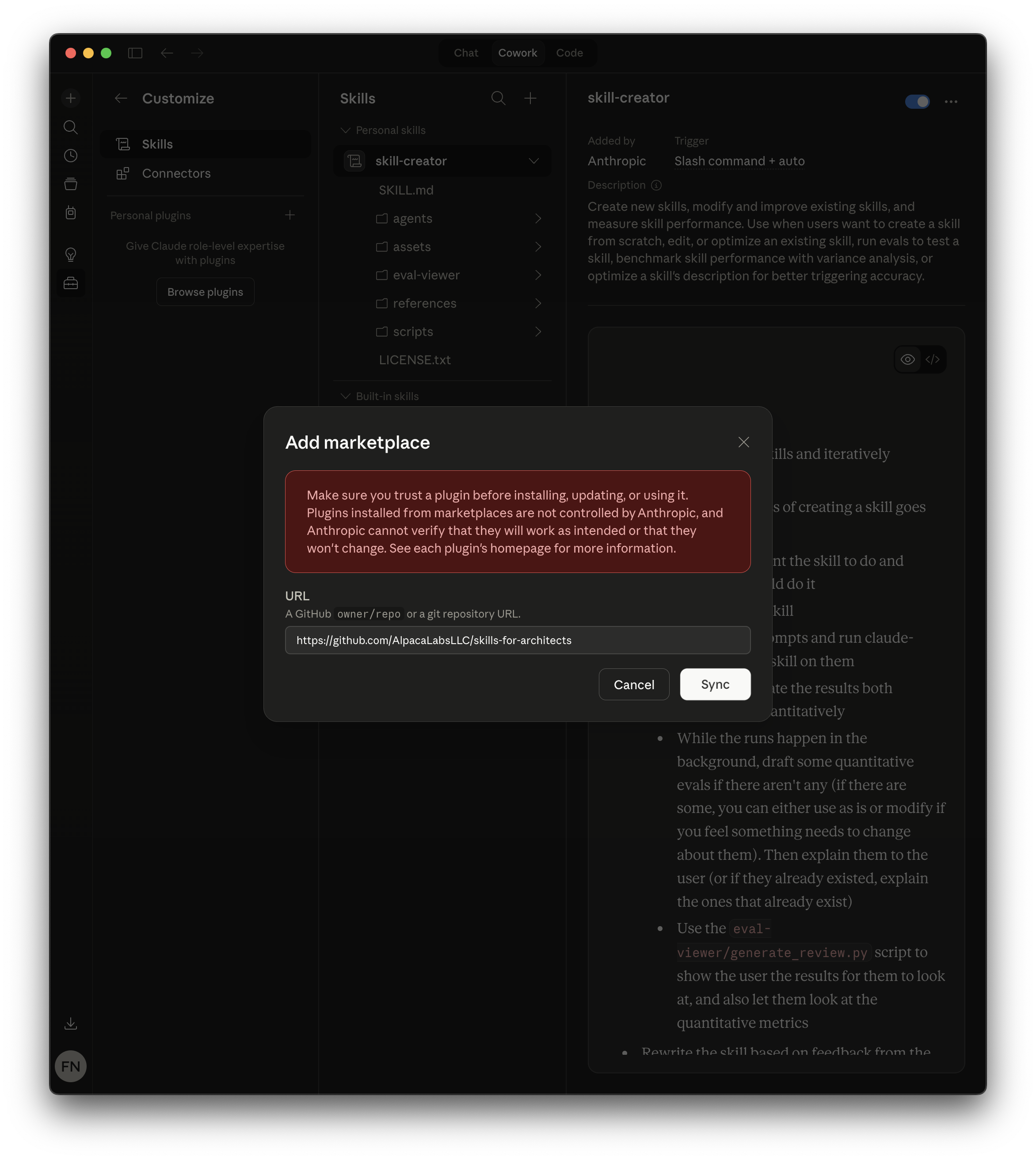
In the Add marketplace dialog, paste the repository URL:
https://github.com/AlpacaLabsLLC/skills-for-architectsClick Sync to connect the marketplace.
Step 3: Install the plugin
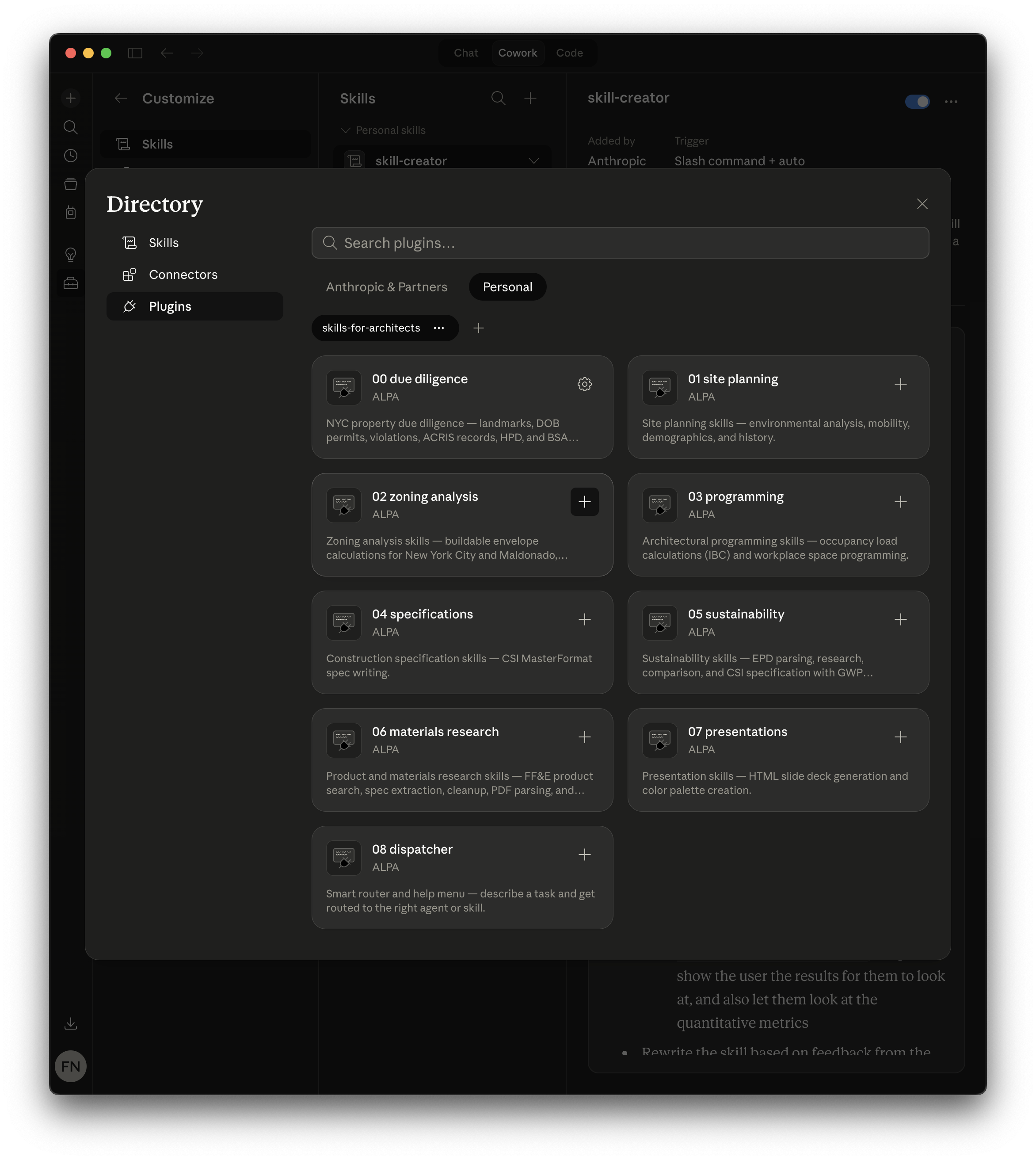
After syncing, click Browse plugins to open the Directory. Select the Personal tab and click the + button on the Architecture Studio card. That single install loads everything.
Installing in Claude Code (CLI)
# Add the marketplace
claude plugin marketplace add AlpacaLabsLLC/skills-for-architects

# Install the plugin
claude plugin install as@skills-for-architects
Verifying the installation
Codex: invoke $studio. Codex should present the Architecture Studio menu and offer to use the tools directly, create a studio, or open an existing one. Invoke a skill directly with $<skill-name>, such as $zoning-analysis-nyc.
Claude Desktop or Claude Code: type /as:studio in any conversation. If the plugin is installed correctly, Claude will present the Architecture Studio menu listing all available workflows.
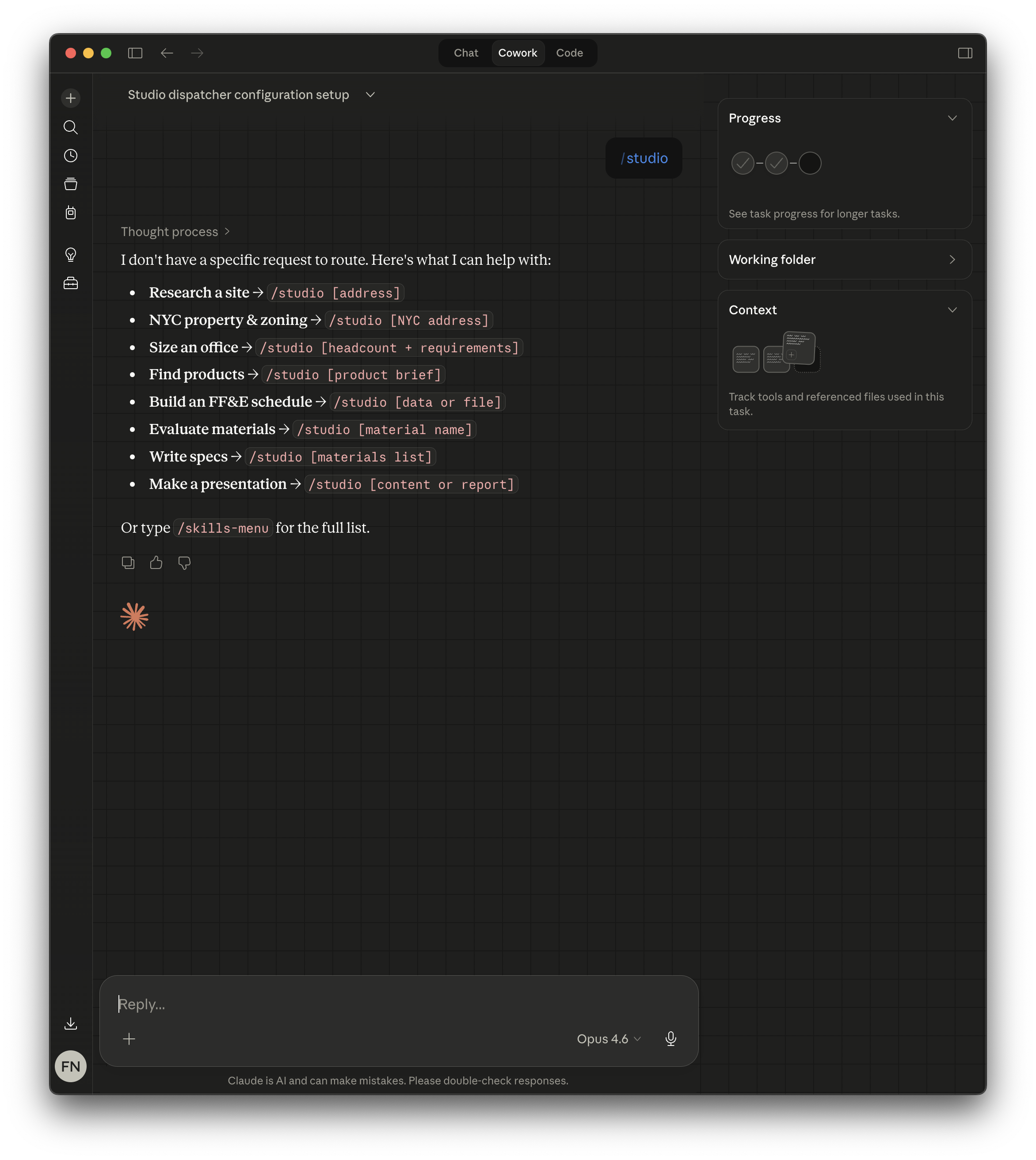
On Claude, you can also type / followed by any skill name (e.g., /as:zoning-analysis-nyc, /as:environmental-analysis, /as:epd-parser) to invoke a specific skill directly. Type /as:tool-catalog for the full list of available commands. New to either host? Start with $learn on Codex or /as:learn on Claude Code.
Updating
Use your host’s plugin controls to refresh the Git marketplace and reinstall or update the plugin. In Claude Code, you can manually refresh with:
claude plugin marketplace update skills-for-architectsUpgrading from v1.3
v1.4 changes the installed plugin identity. Architecture Studio now installs as as@skills-for-architects and its commands are namespaced /as:<skill>. The old install receives no further updates, and there are no compatibility aliases.
claude plugin marketplace update skills-for-architects
claude plugin uninstall architecture-studio@skills-for-architects
claude plugin install as@skills-for-architects
Then reload plugins or restart Claude Code.
The reinstall changes plugin code only. It does not delete or rewrite your project or workspace files, and your existing welcome and update-check preferences carry over. If you maintain Claude settings by hand, replace the old plugin identifier with the new one and change nothing else.
One project-level step is not automatic: if a project still uses the v1.x PROJECT.md Decisions table, open that project and run /as:project migrate. Review the proposed migration before approving it.
Upgrading from v1.2 or earlier
Before v1.3, Architecture Studio shipped as ten separate plugins (00-due-diligence … 09-project-dossier). Those installs no longer receive updates. Uninstall them, refresh the marketplace, and install the single plugin — there is no need to stop at v1.3 on the way:
for p in 00-due-diligence 01-site-planning 02-zoning-analysis 03-programming \
         04-specifications 05-sustainability 06-materials-research \
         07-presentations 08-dispatcher 09-project-dossier; do
  claude plugin uninstall "$p@skills-for-architects"
done

claude plugin marketplace update skills-for-architects
claude plugin install as@skills-for-architects
Everything the ten plugins provided is included; no skill was dropped.
Troubleshooting
$studio doesn’t work in Codex: Confirm that both marketplace and plugin commands completed successfully, then restart Codex. Codex invokes installed skills with $skill-name, not Claude’s /as:skill-name syntax.
The plugin appears in the Directory but skills don’t show: You browsed the marketplace but didn’t install. Go to Customize → Skills → Create plugin → Add marketplace, then Browse plugins and install Architecture Studio.
/as:studio doesn’t work: Make sure the plugin is installed — it provides the /as:studio entry point.
Skills don’t trigger automatically: In Codex, invoke a skill with $<skill-name>, such as $zoning-analysis-nyc. In Claude, type / to see the available commands and invoke a skill with /as:<skill-name>.
Distributing to a team? See Distributing Skills to Teams for project settings, managed settings, and MDM deployment.
Need help? Open an issue on GitHub or email hi@alpacalabs.co.